GIMP
References
Introduction
The GNU Image Manipulation Program (GIMP) is an open-source project which provides us with a professional-grade, full-featured image editor, FREE. Its features compare favorably with commercial programs. In fact, I prefer GIMP over PhotoShop.
This class will introduce you to some of the basic features of GIMP. Keep in mind that GIMP has a lot more to offer than what we will cover here.
Installation
The first thing to do, of course, is to install GIMP on your computer. Even the computers in the Lab and the classrooms here do not normally have GIMP installed on them. No problem.
The installation programs are available for Windows computers, Mac computers, and UNIX-based computers. The main installation download page is here: http://www.gimp.org/downloads/
For a Windows computer, click on the link which says "Download GIMP 2.10.xx".
For a Mac or UNIX-based computer, look for, and click, the link which says "Show other downloads".
The GIMP installers are nicely designed. After just a few clicks, you will have GIMP installed.
The first time you run GIMP, it will take a few minutes to find its tools and filters. Be patient as it starts up.
Editing Techniques
Now let's do some basic image editing. We will create our own image, but these techniques will be useful for editing an existing image, too.
-
Press <Ctrl>+N, or click "File", "New...". Drop down the "Template" list
and select 640x480. Click OK, or press <Enter>.
You should note the "Layers" panel on the right. The default first layer is named "Background".
-
Follow these steps to use some of GIMP's basic tools:
-
Fill the image with color
Fill the image (on the "Background" layer) with a color other than white.-
Click the "Foreground" color block in the left tool kit. The "Foreground" block
is the green block in this tool icon:
 Choose a
color and click "OK".
Choose a
color and click "OK".
- Click the "Bucket Fill Tool" in the left tool kit.
- Choose "FG color fill", which is "ForeGround color fill".
- Choose "Fill whole selection".
- Click in the image. The color should fill the image.
-
Click the "Foreground" color block in the left tool kit. The "Foreground" block
is the green block in this tool icon:
-
Save the image
Save the image as an *.xcf file. GIMP stores every bit of information about your image and its parts (layers) in this *.xcf file. You will "export" this information as a Web-usable image file later. -
Add a new layer
Add a new layer to the image. You can click "Layer", "New Layer..." from the main menu; or you can click the "Create a new layer..." icon in the "Layers" tool. You can use the default values, including "Transparency". You can change the name of the new layer in the "New Layer" dialog; or after the layer is created you can double-click the layer's name in the "Layers" list, change the name, and press <Enter>. -
Add a square
Add a square to the new layer. Use a color, of course, which contrasts with the color you filled the "Background" layer with.- Click the new layer's name in the "Layers" tool kit on the right. This is a basic, very important rule of GIMP (and other, similar image editors): Make sure you select the layer that you want to make changes to!
- Click the "Foreground" color block in the left tool kit. Choose a color which contrasts with the current color in the image, and click "OK".
- Click the "Rectangle Select Tool" icon in the left tool kit.
- Click and hold down the left mouse button, in the image.
- Press and hold down the <Shift> key while you hold down the left mouse button.
- Drag a square onto the image. You are actually only selecting a square-shaped selection area. You will put the actual square into the image in the following steps.
- Click "Edit", "Stroke Selection..." in the main menu.
-
You can pick many options in the "Stroke Selection" dialog window. Perhaps
the most basic set of options would be:
- Stroke Line: Solid color
- Antialiasing (smooths out the edges of the stroke)
- Line width: Whatever you want. Let's use 5 pixels.
- Click on the "Stroke" button.
-
Save the image
Press <Ctrl>+S to save the changes. I save often. You never know when the electricity will go out, or the cat will walk across your keyboard, or any of a bunch of other ways that you could lose a lot of work, if you don't save it frequently. -
Fill the square with color
Select yet another contrasting color, and fill the square with this new color. Don't overwrite the square itself. In order to not overwrite any of the square's color, you will need to:- Click the new layer's name in the "Layers" tool kit on the right. This is a basic, very important rule of GIMP (and other, similar image editors): Make sure you select the layer that you want to make changes to!
- Click "Select", "None" in the main menu. This is also a basic, very important rule of GIMP: Many tools operate on only the selected areas of the active layer, so if you don't want to limit the tool, nothing should be selected.
- Click the "Foreground" color block in the left tool kit. Choose a contrasting color and click "OK".
- Click the "Bucket Fill Tool" in the left tool kit.
- Choose "FG color fill", which is "ForeGround color fill".
- Choose "Fill similar colors". This options causes GIMP to fill the part of the image that you click in, up to but not beyond what it considers to be a consistent, similar color.
- Click in the square. The color should fill the image up to, but not beyond, the square's color.
-
Save the image
Press <Ctrl>+S to save the changes. -
Add some text
Add some text to the image. Use a color which contrasts with all of the other colors that you have used so far.- Click the "Text Tool" icon in the left tool kit.
- Click and hold somewhere in the image. Drag a rectangle onto the image, where you want the text to be. You can "drag" the corners and sides of the rectangle if you need to adjust its size.
- Click the "Color:" block in the text tool's options panel.
- Choose a contrasting color and click "OK".
- Click in the text selection rectangle in the image. Start typing your text. Note that GIMP will automatically create a new layer as you start typing.
-
Save the image
Press <Ctrl>+S to save the changes. -
Rotate the text
Rotate the text to about 45 degrees from horizontal.- Make sure the text layer is selected in the "Layers" tool panel. This is a basic, very important rule of GIMP (and other, similar image editors): Make sure you select the layer that you want to make changes to!
- Click "Select", "None" in the main menu. This is also a basic, very important rule of GIMP: Many tools operate on only the selected areas of the active layer, so if you don't want to limit the tool, nothing should be selected.
- Click the "Rotate Tool" in the left tool kit.
- Click in the image. A "grid" will appear. Drag the mouse cursor around and note the rotation degrees in the "Rotate" panel's display. You can also use the edit or select field in this panel, or even the slider-bar adjustment tool, to set the rotation angle.
- Click the "Rotate" button. The text will rotate.
- The layer may grow in size as you make these adjustments. You can always click "Layer", "Layer to Image Size", in the main menu, to resize the layer.
-
Save the image
Press <Ctrl>+S to save the changes. -
Move the layer
Center the text in the square.- Click the text layer in the "Layers" tool kit on the right. This is a basic, very important rule of GIMP (and other, similar image editors): Make sure you select the layer that you want to make changes to!
- Click the "Move Tool" in the left tool kit.
- I suggest that you select the option "Move the active layer" in the "Move" tool. If you don't, you will need to click on on the text itself in order to move it. (If you don't click on the text, you will move some other layer.)
- Drag the text to where you want it.
- You don't need to do this step, but I do it a lot just to keep my layers consistent: Click "Layer", "Layer to Image Size" again, from the main menu.
-
Save the image
Press <Ctrl>+S to save the changes. -
Change the size of the image
Scale the image to some other size. Let's use 600 by 375 pixels.- Click "Image", "Scale Image..." in the main menu.
- Change the Width to 600.
- Click outside the Width edit control. The Height will adjust automatically. If you ever want to adjust the width and height independently, you can click on the "chain links" to the right of the Width and Height edit controls. But if you "unlink" these controls, be aware that you will be skewing, or stretching, the image out of shape. It might look weird.
- Click the "Scale" button.
-
Save the image
Press <Ctrl>+S to save the changes. -
Use the "Drop Shadow" filter
Add a drop shadow to the text. You can use the default settings, or you can be creative with the settings.- Click the text layer in the "Layers" tool kit on the right. This is a basic, very important rule of GIMP (and other, similar image editors): Make sure you select the layer that you want to make changes to!
- Click "Select", "None" in the main menu. This is also a basic, very important rule of GIMP: Many tools operate on only the selected areas of the active layer, so if you don't want to limit the tool, nothing should be selected.
- Click "Filters", "Light and Shadow", "Drop Shadow..." in the main menu.
- Change whatever settings you want to play with, and then click the "OK" button.
-
Save the image
Press <Ctrl>+S to save the changes. -
Add some gradient color
Add some gradient color to the square. - Add a new layer to the image. You can click "Layer", "New Layer..." from the main menu; or you can click the "Create a new layer..." icon in the "Layers" tool. You can use the default values, including "Transparency".
- Position the layer in the "Layers" listing so it is "behind" the text and the drop-shadow layers. You can "drag" the layer up and down in the list to position it below the text and drop-shadow layers. "Below" means "behind".
- Click on the square's layer in the "Layers" list.
- Click "Select", "None" in the main menu. This is a basic, very important rule of GIMP: Many tools operate on only the selected areas of the active layer, so if you don't want to limit the tool, nothing should be selected.
- Click on the "Fuzzy Select Tool" (it looks like a "Magic Wand") in the toolbox.
- Click on the square's fill color (not the square's border). You should see some "selection" markers around the inside of the square.
- Click on the new layer which you added at the beginning of this sub-list.
-
Fill in the square selection
with a gradient.
- Click the "Gradient Tool" icon in the left tool kit. (This tool was called "Gradient Tool" in a previous version of GIMP.)
- Choose two new colors using the "Foreground" and "Background" color blocks.
- Drag from one corner of the square to the opposite corner. Let go of the mouse button. You should see a "gradient" color in the square.
- Press <Enter> to apply the gradient to the layer.
-
Save the image
Press <Ctrl>+S to save the changes. -
Change the image's opacity
Make the image less opaque.- Add a new layer to the image. You can click "Layer", "New Layer..." from the main menu; or you can click the "Create a new layer..." icon in the "Layers" tool.
- Choose the "White" layer fill type option.
- The new layer will, by default, be above the other layers, which is exactly what you want. If for some reason it is not above the other layers, you will need to make sure the new layer is "in front of" the other layers by "dragging" the layer up in the list to position it above the other layers. "Above" means "in front of".
- Click on the new layer in the "Layers" list.
- You should see an "Opacity" edit box toward the top of the "Layers" panel. Adjust the opacity down to about 70%. Experiment with this setting.
-
Save the image
Press <Ctrl>+S to save the changes. -
Select which layers you want to use for the finished image
Some of the "magic" of the layer-centric design of image editors is that you can click an "eyeball" in the "Layers" tool panel to hide a layer. You can have many layers in a GIMP file which you can add to, or hide from, your finished image as needed. -
Export the image information as a Web-usable image
Export the image as a *.jpg file. You will normally save it into your images directory.- Click "File", "Export..." in the main menu.
- Select the folder where you want to save the image.
- Select the file type in the "Select File Type" dropdown list. For this lesson, select "JPEG image".
- Click the "Export" button.
- You can usually accept the default settings in the "Export Image as JPEG" window. The "Quality" setting determines how much detail will be retained in the JPEG file. Recall from last week that JPEG images purposely lose some detail in order to reduce the file storage size.
- Click the "Export" button again.
-
-
Here is the finished image:
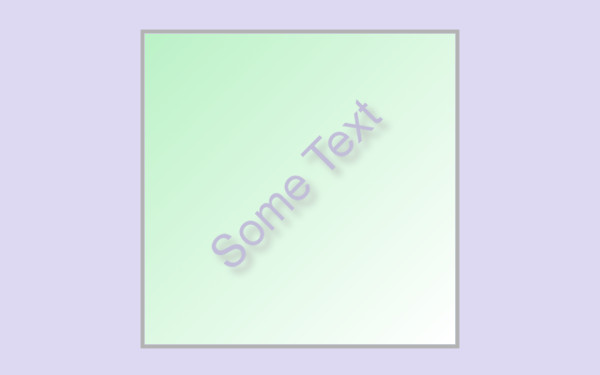
More Editing Techniques
In this section, we will look at these additional tools and techniques:
- Pencil Tool
- Zoom control
- Crop Tool
-
Pencil Tool
The Pencil Tool allows you to draw directly onto a layer. You can draw lines or individual pixels.- Add a new layer to the image. You can click "Layer", "New Layer..." from the main menu; or you can click the "Create a new layer..." icon in the "Layers" tool. Choose the "White" layer fill type option.
- Click on the new layer in the "Layers" list.
- Click on the "Pencil Tool" in the left tool kit.
- There are a bunch of different pencil types (called "brushes" in GIMP) that you can choose from. Click on the "Brush" icon in the lower "Pencil" property panel. Choose your brush.
- You can also choose the size of the brush, and other properties.
- You can change the pencil's color by clicking in the "color" rectangles in the tool kit.
- Click in the image display and draw with your pencil.
-
If you want to constrain the pencil to a straight line:
- Click in the image.
- Press and hold down the <Shift> key.
- Move the cursor and click again.
-
If you want to constrain the pencil to a straight line at some common, pre-determined angles:
- Click in the image.
- Press and hold down the <Ctrl> + <Shift> keys.
- Move the cursor and click again.
- You can change a single pixel in the image by clicking (drawing) that pixel.
-
Zoom Control
The Zoom Control allows you to see more (or less) detail in the image.- In the main image display window, there is a "status bar" at the bottom.
- Click and change the percentage of the full image size that you want to view.
-
Crop Tool
The Crop Tool allows you to cut out a selected part of the image. This action is usually effectively a resizing operation, but it cuts out (resizes) only part of the image rather than the entire image.- Click on the "Crop Tool" in the left tool kit.
- You can choose from various options. Usually, the default settings are usable.
- Click in the image and "drag" a rectangle into the display.
- You can adjust the size and position of the rectangle with the "handles" in the image display, or with the "Position" and "Size" edit boxes in the lower part of the tool kit display.
- When you are satisfied with the crop area (rectangle), press the <Enter> key.
Creating a Thumbnail Image
Now let's use some of the techniques described earlier in this eHandout, to make a thumbnail image.
- If you don't have the working (*.xcf) file that we worked with earlier in this eHandout open, open it in GIMP.
- "Save as" the *.xcf file as a different filename, indicating that it is a "thumbnail" version of the image. I like to add "_th" to the original *.xcf file's name.
- Use the Crop Tool to select and crop a portion of the full-sized image.
- Use the Scale Image ("resize") tool to reduce the size of the cropped image. Typically, an image that is 150px or so on its longer side is a good size for a thumbnail.
- Export the image to a filename that indicates that it is a "thumbnail" image. I like to add "_th" to the original exported image's name, such as "shuttle_th.jpg".
- Quit GIMP. Save the changes.