Image Maps
References
- W3Schools <map> Tag Reference
- W3Schools <area> Tag Reference
- W3Schools Image Map Tutorial (Search for "Image Maps", about halfway down the page.)
Introduction
You already know how to use an image as a link. Now, in this handout, you will learn how to have multiple links in one image. Different parts of the image can link to different pages or files.
Here is an example of an image map. This is a single GIF image. Click on some of the states and note that each state is a separate link:
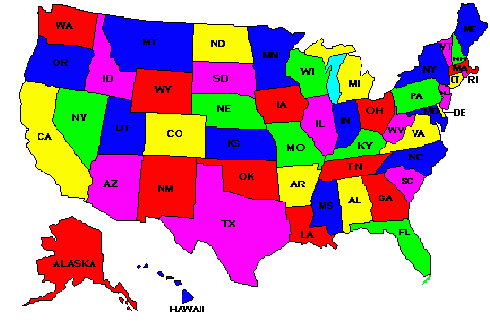
If this were a real-world image map, each state would probably link to a page giving details about that state, or a listing of stores in that state, or whatever.
There are actually two types of image maps: client-side and server-side. We will only talk about client-side image maps. Client-side image maps reside in, and run in, the HTML page in the browser.
A Perspective view of an Image Map
Now let's look at a "perspective" view of what the concept of an image map means.
The image that we will pretend that we are making an image map for is AssignmentBitMapImage.gif and it looks like this:
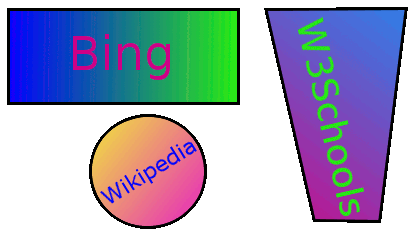
(This is not quite the same image as your assignment's image, but it is close. This image has "Google" in it, but your assignment's image has "DuckDuckGo" in it. Also, your assignment's image is a GIF image with a transparent background.)
When we define an image map over this image, we are essentially making a "map" of "hot spots" which overlay the image.
Each of the "hot spots" has an href attribute defined for it, which works just like the href attribute in an <a> tag.
In the following perspective image, the "hot spots" are the red-and-white shapes above the original image:
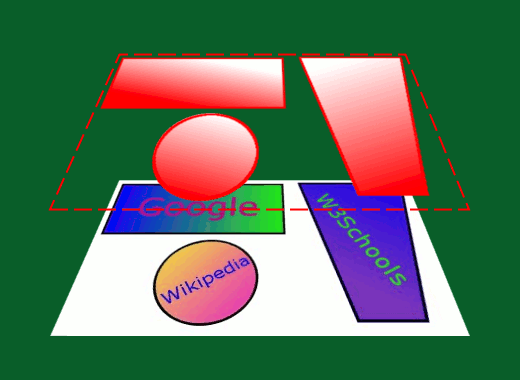
Please note these points about the above image and pretend image map:
- The image is not altered in any way by the image map.
- But there is an additional attribute in the <img> tag, which connects the image to the image map. The extra attribute is "usemap" and we will see details about it shortly.
- The image map is not actually a layer as I have depicted it in the above perspective drawing.
- The image map's hotspots are a collection of <area> tags.
- Each <area> tag lists the points (coordinates) that define the boundaries of a hot spot. We will talk about coordinates and <area> tags in the following sections.
Coding the Map
An image map starts with a <map> tag. It must have a name attribute and an id attribute. The values of the name attribute and the id attribute must be the same (identical). Your initial map code might look like this:
<map name="myImageMap" id="myImageMap">
After the initial <map> tag, you put <area> tags to define the hot spots. Each <area> tag has this information in it:
- shape
- coordinates
- a link (URL)
The hot spots that we saw earlier, in the images with the blue areas in them, would look like this if we coded them into a <map> tag with some <area> tags:
  <map name="myImageMap" id="myImageMap">
    <area shape="rect" coords="17,46, 136,80" href="h11sample4.html" alt="Rectangle" />
    <area shape="circle" coords="268,61,36" href="h11sample5.html" alt="Circle" />
    <area shape="poly" alt="Polygon"
      coords="386,95, 386,55, 424,28, 470,73, 514,25, 525,94, 461,115"
      href="h11sample6.html" />
  </map>
Please note these points about the above code:
- The <map> tag must have a name attribute and an id attribute. The values of the name attribute and the id attribute must be the same (identical).
- Each hot spot is coded as attributes inside an <area> tag. Each area tag is self-closing.
- Each <area> tag must have an alt attribute. The alt attribute is required by the W3C's XHTML validator.
- You can also put a title attribute in each <area> tag.
- The shape attribute tells the browser what kind of shape the hot spot is.
- The coords attribute tells the browser what the shape's coordinates are.
- The href attribute functions just like it does in an <a>...</a> tag. It tells the browser where the hot spot (link) should take the user when the hot spot is clicked
- There is a closing </map> tag.
Adding the Image Tag Attributes
You add the image map image to a page by putting a standard <img> tag in the page along with one additional attribute. This attribute is
- usemap
The usemap attribute names the image map that you have created. In our sample, the usemap attribute would look like this:
usemap="#myImageMap"You should note the pound sign at the beginning of the reference to the image map's name.
Some reference pages still recommend that you also add an ismap attribute to your <img> tag. Unfortunately, the W3C is actively discouraging its use. So don't put it into your <img> tag.
Where to Place the Code
You put the <img> tag wherever you want the image to appear in your Web page. This is rather obvious, but I needed to say it.
You can put the image map code (meaning, the <map> tag and its <area> tags) anywhere inside the <body>...</body> tag, but most people put it at the end of the page (just before the ending </body> tag). This is convention and you should follow it, but it is not a technical requirement.
This is what a page that contains our sample code might look like:
<html>
<head>
  <title>Handout 11 Image Map</title>
</head>

<body>
<div>
  <img src="images/h11sampleImage5.gif" width="558" height="142"
   alt="Image Map Sample" border="0"
   usemap="#myImageMap" />
</div>
<map name="myImageMap" id="myImageMap">
  <area shape="rect" coords="17,46, 136,80" href="h11sample4.html" alt="Rectangle" />
  <area shape="circle" coords="268,61,36" href="h11sample5.html" alt="Circle" />
  <area shape="poly" alt="Polygon"
    coords="386,95, 386,55, 424,28, 470,73, 514,25, 525,94, 461,115"
    href="h11sample6.html" />
</map>
</body>
</html>
and, for review, it looks like this: 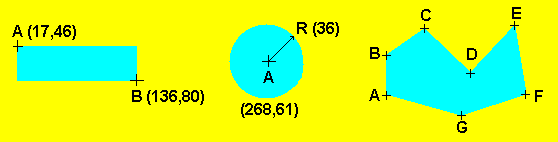
Responsive Image Maps
In the world of Responsive Web Design (RWD), image maps do not automatically adjust the coordinates of the <area> tags based on screen size. This situation will cause your image map's hot spots to be mis-aligned on some screens and at some resolutions.
But many solutions are available. I found a JavaScript/jQuery solution which works very nicely. The script jquery.rwdImageMaps.js is available from GitHub. See the notes below.
Here is a list of the things that you need to change in your page that contains an image map, to make it responsive:
-
Download the script jquery.rwdImageMaps.js:
- Directly from GitHub, or
- Click in the script below, press <Ctrl> + A to select it, press <Ctrl> + C to copy it, paste it into your text/HTML editor in a new page, and Save As jquery.rwdImageMaps.js
-
Save the script jquery.rwdImageMaps.js in a convenient directory. It can be saved
in your site's main directory if you want.
-
Add a <script> tag to your page which has the image map. This first <script> tag will
include the jQuery JavaScript library into your page. This <script> tag can be anywhere
in your page, but many people put their scripts at the bottom of the page, just before the ending
</body> tag. The <script> tag needs to look like this:
<script src="https://ajax.googleapis.com/ajax/libs/jquery/3.4.1/jquery.min.js"></script>
-
Add another <script> tag after the first one that you just added. This <script>
tag will include
the JavaScript code that you got from GitHub earlier.
The <script> tag needs to look like
this:
<script src="jquery.rwdImageMaps.js"></script>
-
Now add a third <script> tag after the second one. This <script> tag will
attach the GitHub script's adjustment code to the <img> tag which has an "usemap"
attribute in it, so the coordinates of the image map's <area> tags
are adjusted when the screen size is different than the screen
on which the map was created. This <script> tag should look like this:
<script> $(document).ready(function(e) { $('img[usemap]').rwdImageMaps(); }); </script> -
Finally, add this selector and these declarations to your page's stylesheet:
img[usemap]
{
  border: none;
  height: auto;
  max-width: 100%;
  width: auto;
}
The two most important properties in this CSS selector are max-width and width. The width can be just about anything; it does not need to be 'auto'. For instance, in my in-progress site, width: 80%; is working nicely.
Using a Target
You can use a target attribute in the <area> tag to direct the linked document or site to a specific window or frame, just as you can with a regular <a>...</a> tag. The sample code below shows how you can make this situation work.
We will use an inline frame for this example. It is in file imagemaptest2.html:
Please note that the iframe tag has a name attribute with the value "theFrame".
<!DOCTYPE html PUBLIC "-//W3C//DTD XHTML 1.0 Transitional//EN"
   "http://www.w3.org/TR/xhtml1/DTD/xhtml1-transitional.dtd">
<html xmlns="http://www.w3.org/1999/xhtml" xml:lang="en" lang="en">

<head>
  <title>An Image Map with Target</title>
  <meta http-equiv="content-type" content="text/html;charset=utf-8" />
  <meta http-equiv="Content-Style-Type" content="text/css" />
</head>

<body>
<div>
  <img src="images/h11sampleImage5.gif" width="558" height="142"
   alt="Image Map Sample" border="0"
   usemap="#myImageMap" />
</div>
<div>
  <iframe height="250" width="450" name="theFrame" frameborder="0"></iframe>
</div>
</body>
<map name="myImageMap" id="myImageMap">
  <area shape="rect" coords="17,46, 136,80" href="h11sample4.html" alt="Rectangle" target="theFrame" />
  <area shape="circle" coords="268,61,36" href="h11sample5.html" alt="Circle" target="theFrame" />
  <area shape="poly" alt="Polygon"
    coords="386,95, 386,55, 424,28, 470,73, 514,25, 525,94, 461,115"
    href="h11sample6.html"  target="theFrame" />
</map>
</body>
</html>
Please note that the <area> tags have a target attribute with the value "theFrame".
The first hot spot (<area> tag) loads h11sample4.html into the named frame. That code is below:
<!DOCTYPE HTML PUBLIC "-//W3C//DTD HTML 4.01 Transitional//EN">

<html>
<head>
 <title>Handout 11 Sample for Rectangle</title>
</head>

<body>
<div>
  <h3>You clicked the rectangle!</h3>
  <img src="images/h11sampleImage2.gif" width="212" height="129"
   alt="Rectangle" border="0">
</div>
</body>
</html>
The other two pages that are loaded by the other two hot spots are very similar to the above code, so I will not list them here. I also will not list the file home.html, which contains a simple <h1>...</h1> tag.
The above code looks like this when it is displayed in a browser.
Legal Issues
If you display someone else's Web page in an iframe tag in your site, you are probably infringing on their ownership and copyright rights. (As always, check with your attorney if you're not sure.) You can put an attribute of target="_blank" in your image map's area tags to open the other site in a separate window or tab.
What Are Image Coordinates?
Image coordinates are reference points on an image that specify the boundaries for each hot spot that can be linked to other pages or files. You have to tell the browser the coordinates of each hot spot.
You can use three different kinds of shapes to map out the coordinates of each hot spot:
- Rectangle
- Circle
- Polygon (can be irregularly shaped)
Each point has two measurements. The first measurement is the distance in pixels from the left edge of the image. The second measurement is the distance in pixels from the top edge of the image.
Using GIMP to find the coordinates
GIMP is FREE from http://www.gimp.org. GIMP is, by the way, an
excellent image editor in addition to its having a
hot-spot editor in it.
You can find the image-map editor in GIMP by following these steps:
- Open the image in GIMP.
- In the window that has the image in it, click "Filters".
- In the menu that opens, click "Web".
- Now click "Image Map".
I will show you in class, how to use this Image Map filter in GIMP.
After you have added some hot spots to your image, using GIMP's Image Map filter, you will need to copy the <map> tag and its <area> tags to your HTML page where the image resides. Use these steps:
- Still in the Image Map filter, click "View" in the top menu.
- Now click "Source..."
- Highlight and copy the HTML code that you see in the "View Source" window.
- Paste the copied HTML code into your page which contains the image.
- Add a usemap attribute to the image tag in your page. Or you can copy and paste the <img> tag from the "View Source" window.
Rectangular Coordinates
Rectangular coordinates for hot spots give the upper left corner and the lower right corner of the rectangle.
Look, for instance, at the image below. We are going to get the
coordinates for a hot spot that covers the blue rectangle:
The point represented by the cross-hair mark labeled "A" in the rectangle is 17 pixels to the right of the images's left edge, and 46 pixels down from the image's top edge. The coordinates of point A are usually written as 17,46.
The point represented by the cross-hair mark labeled "B" in the rectangle is 136 pixels to the right of the left edge of the image, and 80 pixels down from the top edge of the image. The coordinates of point B are usually written as 136,80.
The starting point for rectangular hot spots is the upper left corner of the hot spot. In this example, the starting point is 17,46.
The ending point for rectangular hot spots is the lower right corner of the hot spot. In this example, the ending point is 136,80.
So the coordinates that define our rectangular hot
spot are written as
"17,46, 136,80". You don't have to put the
space between the two points, but it helps you see the
coordinates for the individual points.
Circular Coordinates
Circular coordinates for hot spots give the center point and the radius of the circle.
Look, for instance, at the image below. We are going to get the
coordinates for a hot spot that covers the blue circle:
The point represented by the cross-hair mark labeled "A" in the circle is at coordinates 268,61. This is the center point of the circle.
The radius of a circle is half the distance across the entire circle. The radius is usually represented in diagrams by the letter R. This circle is 72 pixels across, so the radius R is 36.
So the coordinates that define our circular hot spot
are written as
"268,61,36".
Polygonal Coordinates
Polygonal coordinates for hot spots give a series of points that define an irregular, but closed, shape.
Look, for instance, at the image below. We are going to get the
coordinates for a hot spot that covers the irregularly-shaped blue
area:
The coordinates for each of the points A through G in the polygon are:
- A 386,95
- B 386,55
- C 424,28
- D 470,73
- E 514,25
- F 525,94
- G 461,115
So the coordinates that define our polygonal hot spot
are written as
"386,95, 386,55, 424,28, 470,73, 514,25, 525,94,
461,115". You don't have to put the space
between the points, but it helps you see the coordinates for the
individual points.
An Image Map Alternative
If you don't want to use an image map, you can slice your image into individual images and put a standard <a href...>...</a> tag around each of the sliced images. You can piece the sliced images back together in your page so they look like the original image.
If you do decide to slice up your image instead of using an image map, you should be careful not to put any line breaks or spaces between the image tags. If you do, the image edges will be separated and will not look like one image. And if you use a table to reassemble the image slices, you need to make sure you set the (style) border property to 0px, the border-collapse property to collapse, and put a cellspacing="0" attribute in the <table> tag.
Also, make sure there are no line breaks (<enter> key), spaces, or tabs between the end of the <img> tag and the beginning of the </a> tag. Some browsers will display anything between these tags as extra space, or a narrow line between the images (if you have sliced a larger image into smaller images, for instance).
And in any case, whether you use image maps or sliced images, you should include alternative text links on your page, which match the links that are in the image area. This is always a good idea.
Using Dreamweaver
You can use Dreamweaver to create an image map. (By the way, you can also use the hot-spot editors that I mention in the section "Finding Coordinates". The ideas in this current section will also probably mostly apply to using those programs, too.)
Start by loading or creating an HTML page in Dreamweaver, which has an image in it. This sample page has an image of the space shuttle being ferried on the back of a modified Boeing 747 jet. (The photograph also has a fake "sun" that I put into the image so we would have a circular area to make into a hot spot.):
<!DOCTYPE html PUBLIC "-//W3C//DTD XHTML 1.0 Transitional//EN"
  "http://www.w3.org/TR/xhtml1/DTD/xhtml1-transitional.dtd">
<html xmlns="http://www.w3.org/1999/xhtml">
<head>
  <title>Shuttle Image Map</title>
  <meta http-equiv="Content-Type" content="text/html; charset=utf-8" />
  <link rel="stylesheet" type="text/css" href="shuttle.css" />
</head>

<body>

<div class="shuttleImage"> <img src="images/first-shuttle.jpg" width="586" height="428" alt="Shuttle and 747"
   border="0" />
</div>

</body>
</html>
Here is the stylesheet, shuttle.css:
.shuttleImage
{
  text-align:center;
}
The page currently looks like this.
Here is a summary of the steps to use in Dreamweaver to add an image map to this image:
- With the HTML page open in Dreamweaver, go into "Design" mode.
- Select the image and make sure the "Properties" panel is displayed for the <img> tag. (You might need to click the image in the Design display several times.)
- Type a name for the image map that you are making, in the "Map" field of the Properties panel.
-
Click on one of the area shapes in the Properties panel.
- If you selected the rectangle shape, drag a rectangle shape over the part of the image where you want a rectangular hot spot.
- If you selected the circle shape, drag a circular shape over the part of the image where you want a circular hot spot.
- If you selected the polygon shape, click on a series of points around the part of the image where you want a polygonal hot spot.
-
When you have completed the hot spot, a "Hotspot"
Properties panel will open.
- Enter the Link (relative or absolute URL) of the page/file/location that you want the hot spot to take the user to.
- If you have a target for the link, enter that, also. You might want to consider using a "_blank" target, at least. You can select "_blank" from the dropdown list.
- And you should enter an "Alt" attribute.
- If you go into "Code" mode now, you will see an <area> tag in an image map (<map>...</map> tag) in the page.
- Continue with as many hot spots as you need in the image.
Here is the finished sample page. This is file shuttleMap.html:
<!DOCTYPE html PUBLIC "-//W3C//DTD XHTML 1.0 Transitional//EN"
  "http://www.w3.org/TR/xhtml1/DTD/xhtml1-transitional.dtd">
<html xmlns="http://www.w3.org/1999/xhtml">
<head>
  <title>Shuttle Image Map</title>
  <meta http-equiv="Content-Type" content="text/html; charset=utf-8" />
  <link rel="stylesheet" type="text/css" href="shuttle.css" />
</head>

<body>

<div class="shuttleImage"> <img src="images/first-shuttle.jpg" width="586" height="428" alt="Shuttle and 747"
   usemap="#shuttleStuff" border="0" />
  <map name="shuttleStuff">
    <area alt="Click to see the NASA home page" shape="poly"
     coords="209,104,222,102,281,146,394,126,404,130,431,139,432,148,418,156,255,189,186,174,224,148,244,146,233,140"
     href="http://www.nasa.gov" target="_blank" />
    <area shape="poly" coords="71,138, 99,136, 184,197, 376,183, 410,177, 444,173, 464,172, 480,183,492,190,495,200,467,215,442,219,399,222,406,230,405,236,387,238,358,240,337,238,330,235,330,233,295,234,248,238,115,222,116,230,95,231,94,221,72,223,71,182,88,181" href="http://www.boeing.com" target="_blank" alt="Click to see the Boeing home page">
    <area shape="circle" coords="528,57,47" href="http://www.sun.com" target="_blank" alt="Click to see the Sun site" />
  </map>
</div>

</body>
</html>
You can see what the image and its mapped areas look like in the browser.
Please note these points about the above code:
- The coords values must be on the same line if you have a bunch of them. If you put in a CR/LF character (with the <Enter> key) anywhere in the value, the browser will ignore the next following coordinate pair of values.
- There are alt attributes in the <area> tags. These attribute values show up as tooltips that are different from the alt attribute value for the main image.