Assignment #18: Image Maps
- This assignment will demonstrate:
- Creating an Image Map
- Adding the image and the image map to your Resources page
-
For this assignment you will add to the content of your "Resources" page.
- I suggest that you add the image to the left "w3-half" or "w3-third" <div> tag, underneath the absolute links that are already in your Resources page.
-
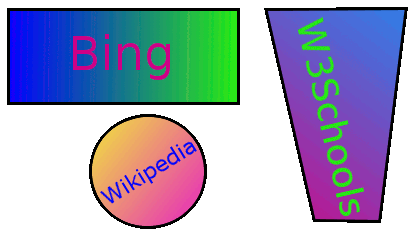
Use the image that is at the bottom of this page. Right-click in the
image, and save it to your images folder.
-
You will need to provide three hot spots. I suggest that you use GIMP to create the <area> tags.
The "resource" sites that the hot spots will link to will be:- Bing (http://www.bing.com) will be a rectangular hot spot.
- Wikipedia (http://www.wikipedia.org) will be a circular hot spot.
- W3Schools (http://www.w3schools.com) will be a polygonal hot spot.
-
Make sure that each resource site opens in a new browser window, or at least in a
new "tab" if your browser has tabs. [HINT: Add a target="_blank" attribute to each
of the <area> tags.]
-
Also make sure that the user's browser will open a "tooltip" that describes the hot spot when they
hover their mouse cursor over it. [HINT: Add alt and title attributes to the
<area> tags.]
-
If you use the javascript/jquery code from the eHandout to successfully make the image
map responsive, I will give you 30 extra-credit points.
-
Validate your resources.html page with the W3C's
HTML Validator page.
I will also be validating your page, so this validation will be part of your
grade.
-
If you made any changes to your
stylesheet, validate your stylesheet page with the W3C's
CSS Validator page.
I will also be validating your page, so this validation will be part of your
grade.
-
Upload your pages to your Freehostia site.
- You can test your pages on the server by selecting the "Student Sites" link on the class site and then clicking your student number in the bulleted list. You will probably need to refresh/reload the page in your browser in order to see your changes.