JavaScript, jQuery, and React -- ITSE 1311 -- Section 81701
FTP Instructions
Updated 9/27/2020 at 11:10am
- The FTP program
that is on the classroom and Lab computers is Filezilla.
-
You can download Filezilla from https://download.cnet.com/FileZilla/3000-2160_4-10308966.html. This is an excellent FTP
program, and it is FREE. Make sure that you download the Filezilla
Client,
not the server.
(You only need to download the installation file.
You do not need any source files.)
CAUTION: DO NOT DOWNLOAD Filezilla
from https://sourceforge.net/projects/filezilla/ or
https://filezilla-project.org/ !! It is packaged there with MALWARE.
-
Make note of where you downloaded the installation file to. (If you are using Firefox
as your browser, the installation file will probably (by default) be saved in a folder
called "Downloads".)
-
Open Windows Explorer (You can use <Window> + E to open Windows Explorer.), find
the installation file that you downloaded, and double-click on it.
-
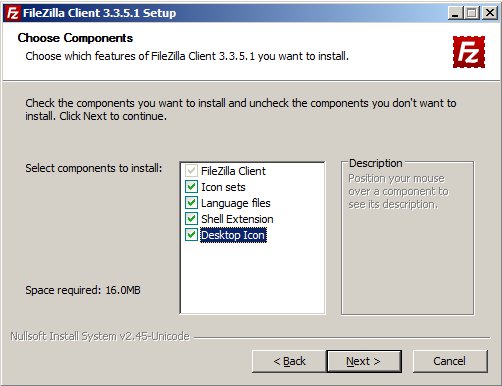
During the installation of Filezilla, you can accept most of the default settings,
but when you get to this window you will need to select/check the "Desktop Icon"
item in order to get an icon placed
onto your desktop.:
-
After you install Filezilla onto your computer, you should see an icon something like
this on your desktop:

-
Double-click this icon to start the Filezilla application.
-
Here are some instructions for using the Quickconnect feature of
Filezilla to upload your files:
- The Host is
sftp://www.mmlab2.rlc.dcccd.edu
-
The Username is the one that I e-mailed to you, and will
be something like web2241. If you do not yet have your username,
let me know right away!
-
I also e-mailed your Password to you. Note that the
password is case-sensitive. Each of the class passwords
also has at least one special character in it. If you do not yet have your password,
let me know right away!
-
Leave Port empty.
-
Your entries in these fields should look something like this:

- Click the "Quickconnect" button.
-
The first time that you connect to the school's server, you will be asked to
verify the security certificate. You can tell Fizezilla to "remember" the
certificate if you select/check the checkbox at the bottom of the window
before you accept the certificate.
- You will automatically be connected to the folder that is the same name as your username,
on the server.
-
Here are some instructions for using the Site Manager in Filezilla to upload your files.
-
In order to set up an FTP profile, select "File", "Site Manager..." from the main menu.
-
Make sure the "My Sites" folder is selected in the left panel.
Click the "New Site" button.
-
Type the name of your site (something like "Web Design I" or something else that you
will remember) and press <Enter>.
-
Select SFTP as the Protocol.
-
Type in the Host:, which is www.mmlab2.rlc.dcccd.edu.
-
Select "Normal" for the Logon Type select list.
-
Type your username (for instance, web2241) into the User: field.
-
Type your password into the Password: field.
-
Click the "Advanced..." tab at the top of the right panel.
-
Click the "Browse..." button to navigate to your Default local directory and
click the "OK" button.
-
Click the "Connect" button.
-
The first time that you connect to the school's server, you will be asked to
verify the security certificate. You can tell Fizezilla to "remember" the
certificate if you select/check the checkbox at the bottom of the window
before you accept the certificate.
- You will automatically be connected to the folder that is the same name as your username,
on the server.
-
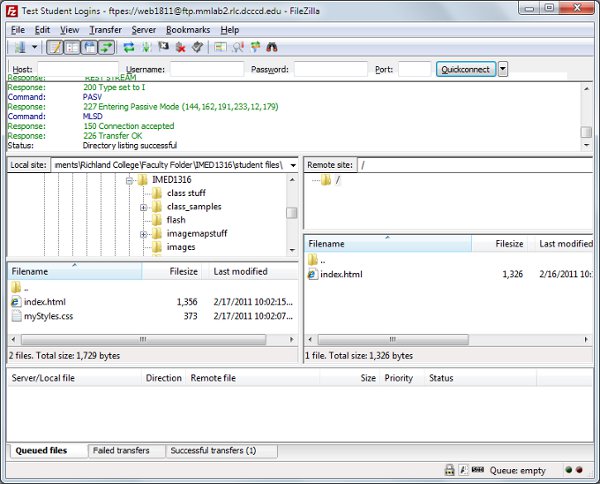
Your local files will be in the list on the left. The server copies
of your files will be in the list on the right.
Your window should look something
like this:
-
You can drag & drop your files in either direction. In order to drag and drop the files,
you need to click (and hold) the mouse cursor on the
filename itself, not in the empty space between the filename and the filesize.
If you drag & drop a local filename, the file will
be uploaded to the server. If you drag & drop a server filename,
the file
will be downloaded to the local drive.
-
When you drag & drop the file(s) that you are transferring, you need to drop
them onto the target drive only when the cursor turns into an arrow with a "plus" sign
next to it.
If the cursor remains as a circle with a line through it, the transfer will not occur.
-
You can also double-click the
filenames to start a transfer. If you double-click a local filename, the file will
be uploaded to the server. If you double-click a server filename, the file
will be downloaded to the local drive.
-
If the file that you are transferring already exists on the drive that you are transferring
it to, you will be asked to choose an action to resolve the "conflict". (It is not really
a conflict, but Fizezilla is being courteous and is trying to make sure you really wanted
to overwrite the existing file.)
-
Normally, the Action will be "Overwrite".
-
If you are transferring multiple files, and you don't want to choose an action for
each separate file, you can check "Always use this action" and "Apply to current
queue only". I highly recommend that you do *DO* select
"Apply to current queue only" so Filezilla will continue to ask you to resolve
file overwrite "conflicts". This is a good thing that Filezilla is doing for you.